Launching4 min read
Designing your collection's cover and thumbnail
The cover and thumbnail are the first things people see of your collection. How to pick the right piece, make it read at small sizes, keep it honest, and check it before you publish.
KURV teamAlso in Español, Português (Brasil)
On this page10 sections
Before anyone opens your collection, they see two things: a cover (the big image at the top of your collection page or in a shared link) and a thumbnail (the small square in lists, search and feeds). Most people decide in a second whether to click. This guide is about making those two images do their job: show what your collection is, clearly, at any size.
Cover vs thumbnail
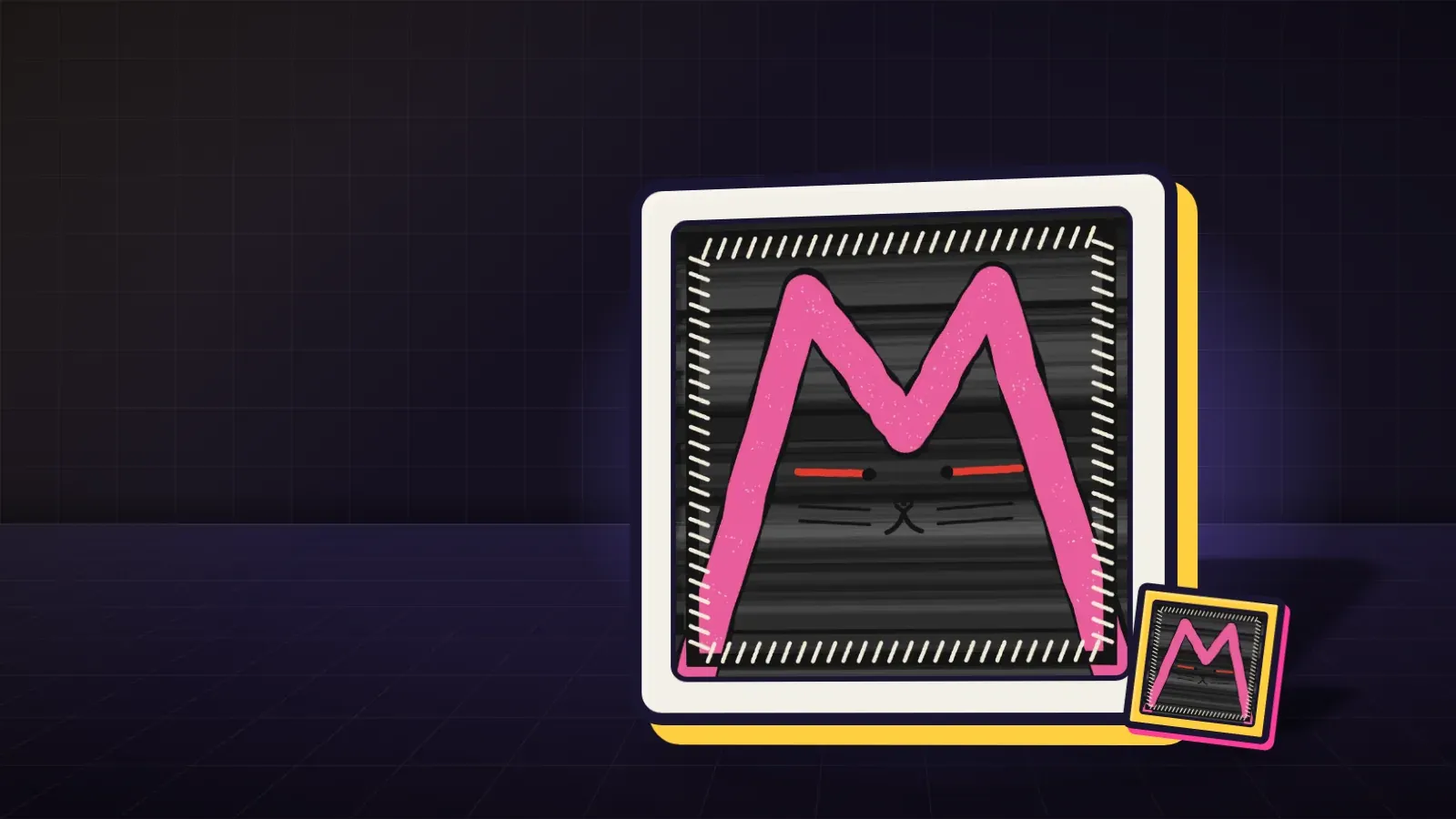
- The cover is the big, wide image. It sets the mood. It can show one piece large, a few pieces together, or a scene built from your art.
- The thumbnail is small and usually square. It has to work at the size of a fingernail on a phone screen, next to many others.
They do different jobs, so they’re often different crops or different images. The thumbnail needs to be simpler.
Pick the right piece
Your best-looking piece isn’t always the best cover. Look for one that is:
- Typical. It shows what most of the collection looks like. If one piece is very different from the rest, it can mislead people.
- Clear. One subject, strong shapes, not a lot of tiny detail.
- Readable small. It still looks like itself when you shrink it way down.
A good test: show the thumbnail to a friend for one second and ask what the collection is. If they can say “cats” or “pixel robots” or “abstract shapes”, it works.
Make it read at small sizes
- Crop in. For the thumbnail, crop tight on the subject, often just the face or the main shape.
- Boost contrast. A thumbnail with low contrast turns into a gray square in a feed. Make sure the subject is clearly lighter or darker than the background.
- Cut the text. Small text is unreadable on a thumbnail. Let the collection name be shown by the page, not baked into the image.
- Keep the edges clear. Some places crop corners or show a thumbnail as a circle. Keep the important part away from the edges.
Keep it honest
Your cover is a promise about what’s inside. Use art from your actual collection, or a scene made from it, not a picture of something people won’t get. If the cover shows a trait that only one piece has, people may expect it to be common. Honest covers mean fewer disappointed collectors and fewer people asking “where’s the one from the cover?”.
Steps: making your cover and thumbnail
- Choose two or three candidate pieces that are typical and clear.
- Make a wide cover from the best one, or arrange a few pieces together on a simple background.
- Make a square thumbnail by cropping tight on the main subject.
- Shrink the thumbnail to roughly the size it’ll show on a phone and look at it next to other images.
- Check contrast by viewing it in grayscale. The subject should still stand out.
- Ask one person what they think the collection is from the thumbnail alone.
- Export clean files at the size and format the upload asks for, and preview them on the collection page before you publish.
A worked example: a cat collection’s thumbnail
Ana has a collection of cat portraits with different hats, eyes and backgrounds. Her first thumbnail is her favorite piece: a cat in a detailed starry hat on a busy purple background. Shrunk down, it’s a purple blur.
She tries again. She picks a more typical piece with a simple hat, crops in on the face, and swaps the background for a flat color that’s much lighter than the cat. In grayscale, the cat’s face is a clear dark shape on a light square. Her friend glances at it and says “cats in hats” right away. For the cover, she places five typical cats in a row on the same flat color, so the page shows the range without overpromising.
Pixel art covers
If your collection is pixel art, scale your cover and thumbnail up in whole steps (2x, 4x and so on) with nearest-neighbor scaling, so the pixels stay sharp. Other resizing methods blur the edges. What is pixel art? A guide for KURV creators covers that in more detail.
Common mistakes
- Using the rarest piece as the thumbnail. It sets the wrong expectation.
- Too much detail. Tiny details vanish at thumbnail size.
- Text in the thumbnail. It becomes unreadable.
- Low contrast. The image disappears in a list.
- Never checking it small. Always look at it at real size before publishing.
FAQ
Should the cover and thumbnail be the same image? They can come from the same art, but the thumbnail is usually a tighter, simpler crop.
Can I use art that isn’t in the collection? It’s better to use art from the collection, or a scene made from it, so the cover matches what people get.
Should I put my collection’s name in the image? Usually not in the thumbnail, where it’s too small to read. The page shows the name.
How do I know it reads at small sizes? Shrink it to phone size, view it in grayscale, and ask someone what they see in one second.